

|
Proposal submission in RTF
Submit Proposal
Step 1.1 : after login the portal you can see the menu page and on left side there is submenu by clicking on it you can go for Form Submission as shown in figure 1.1
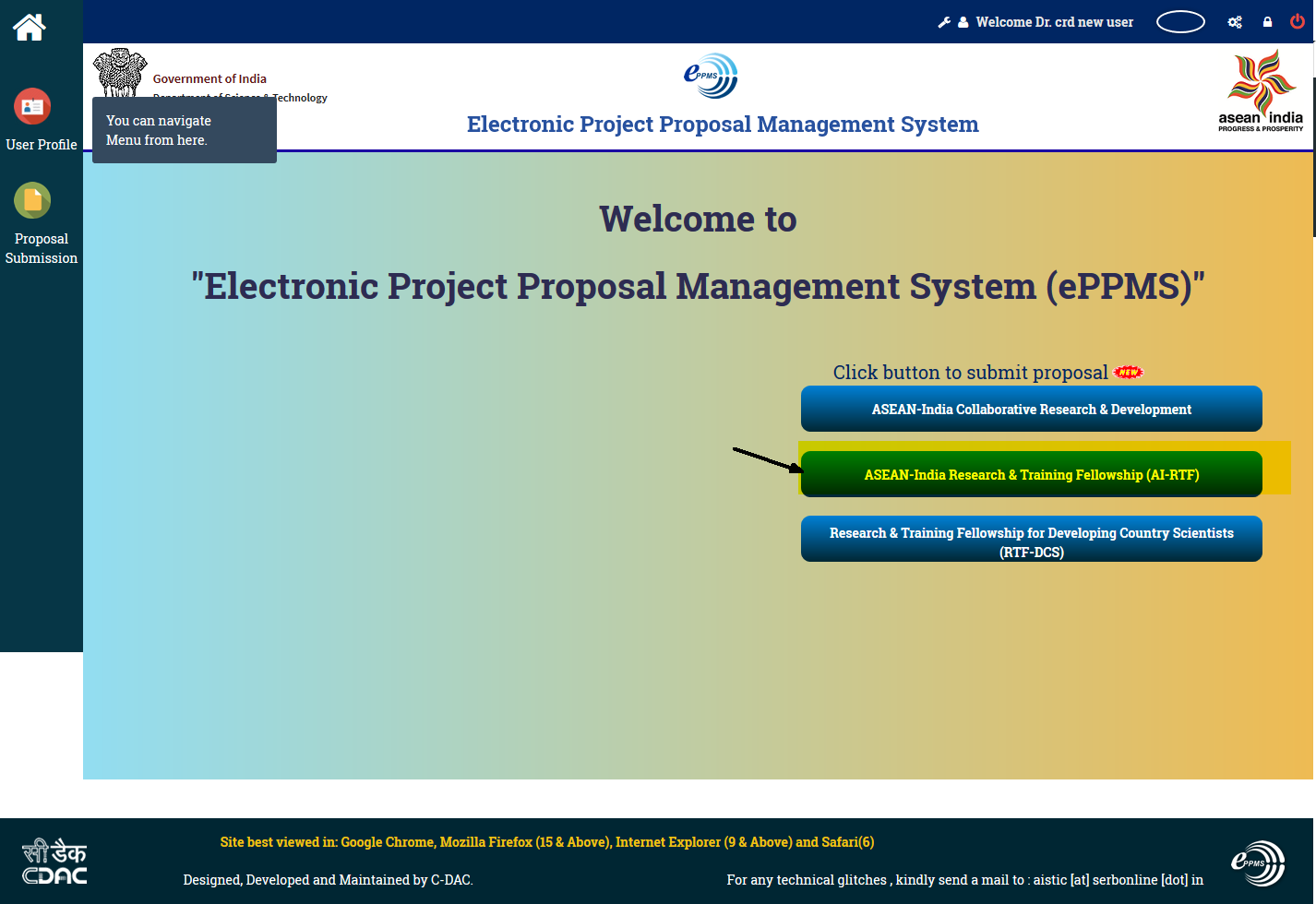
Figure 1.1
Step 1.2 : select your activity as shown in Figure 1.2
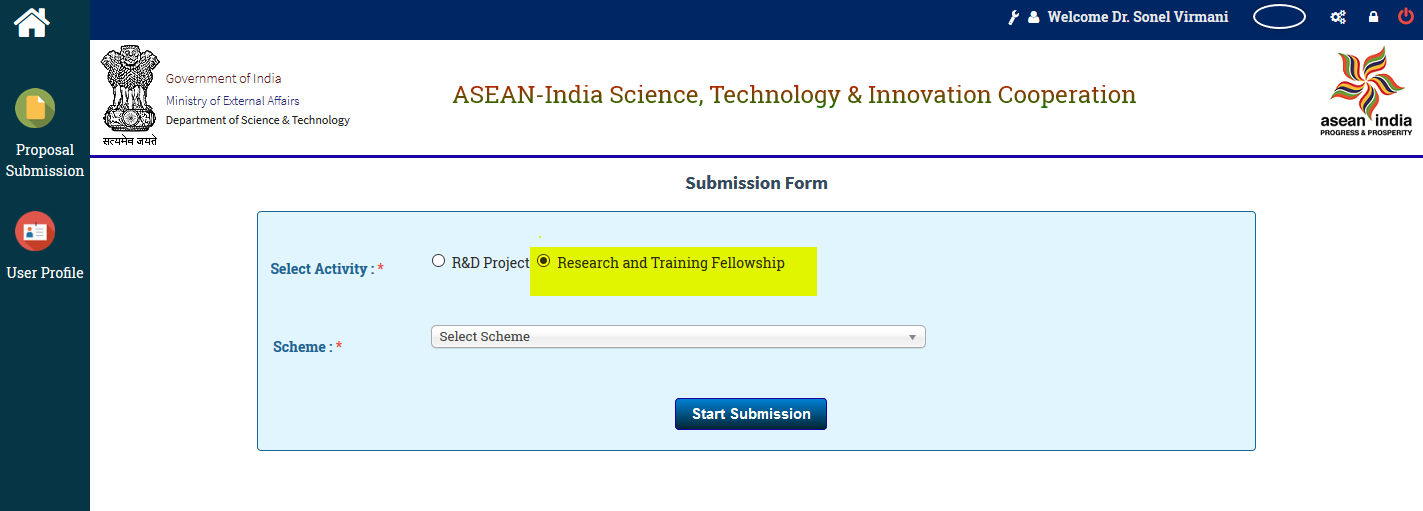
Figure 1.2
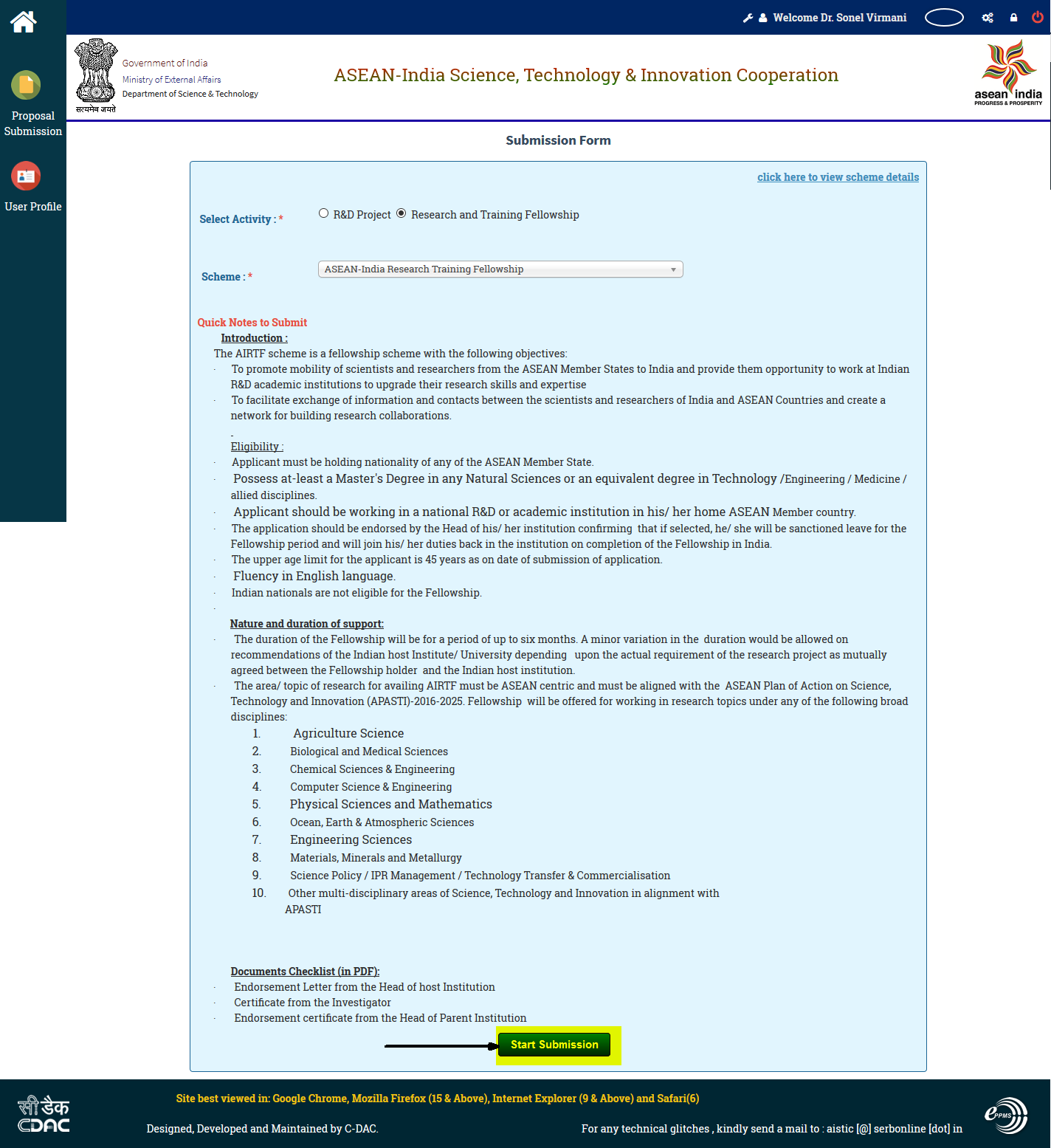
Figure 1.3
PROFILE DETAILS:
Step 1.3 : Fill all the user profile details as shown in figure 1.4
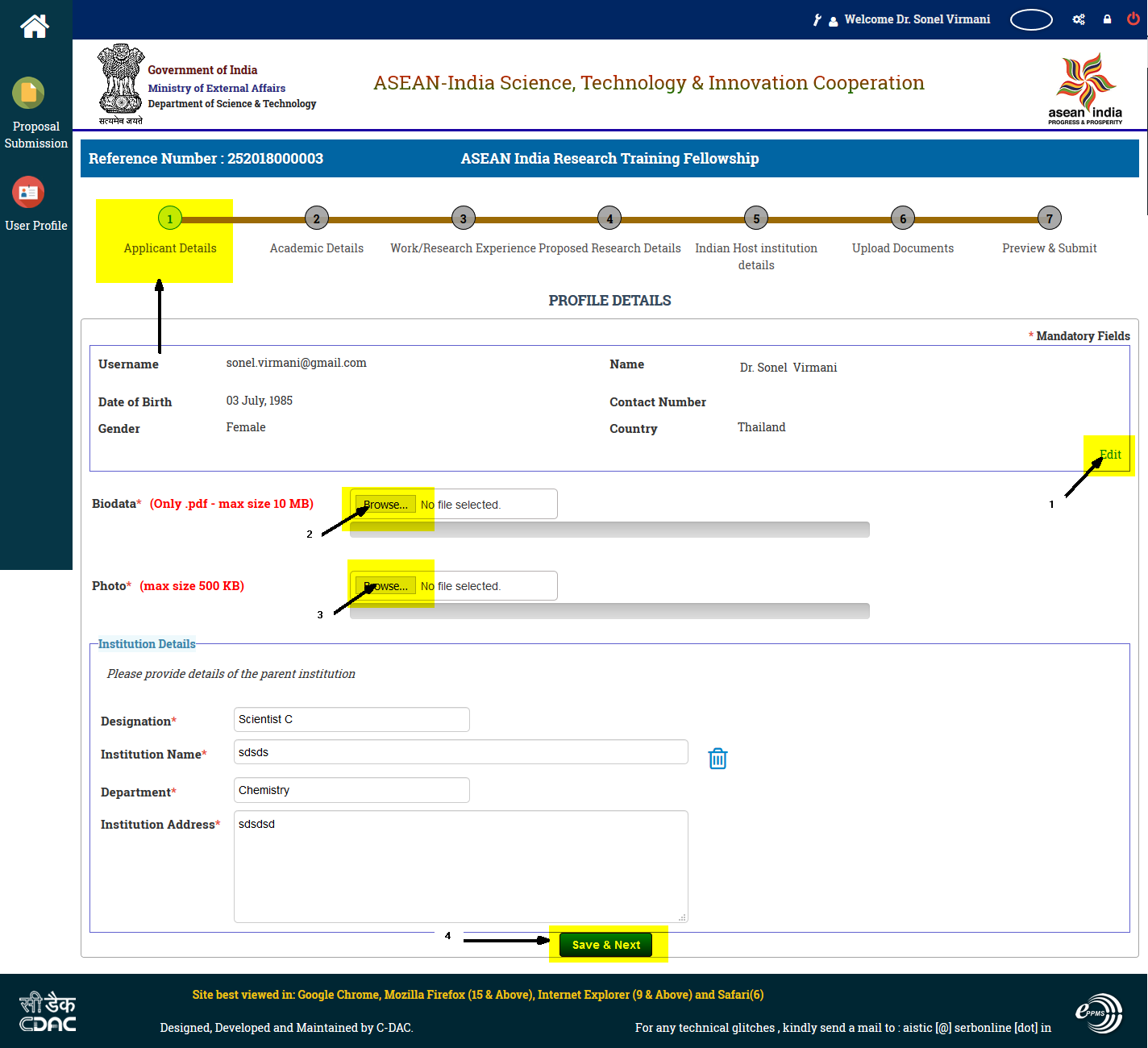
Figure 1.4
Academic Details
Step 2 : Fill all the mandatory details as shown in Figure 2
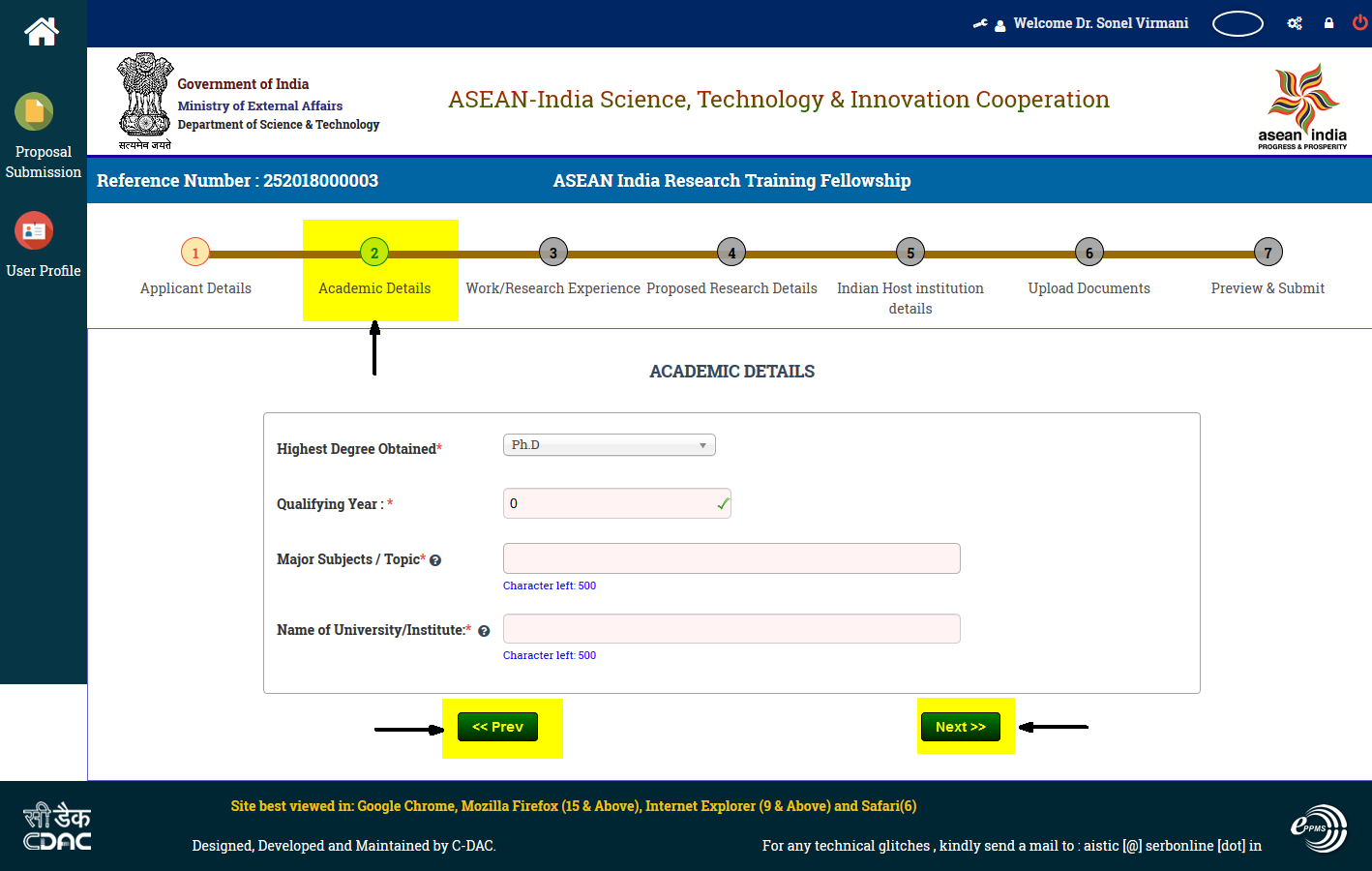
Figure 2
Work Research Experience
Step 3 : fill all the mandatory details as shown in figure 3.1 and click on save button if you want to reset all the fields you can click on Reset button.
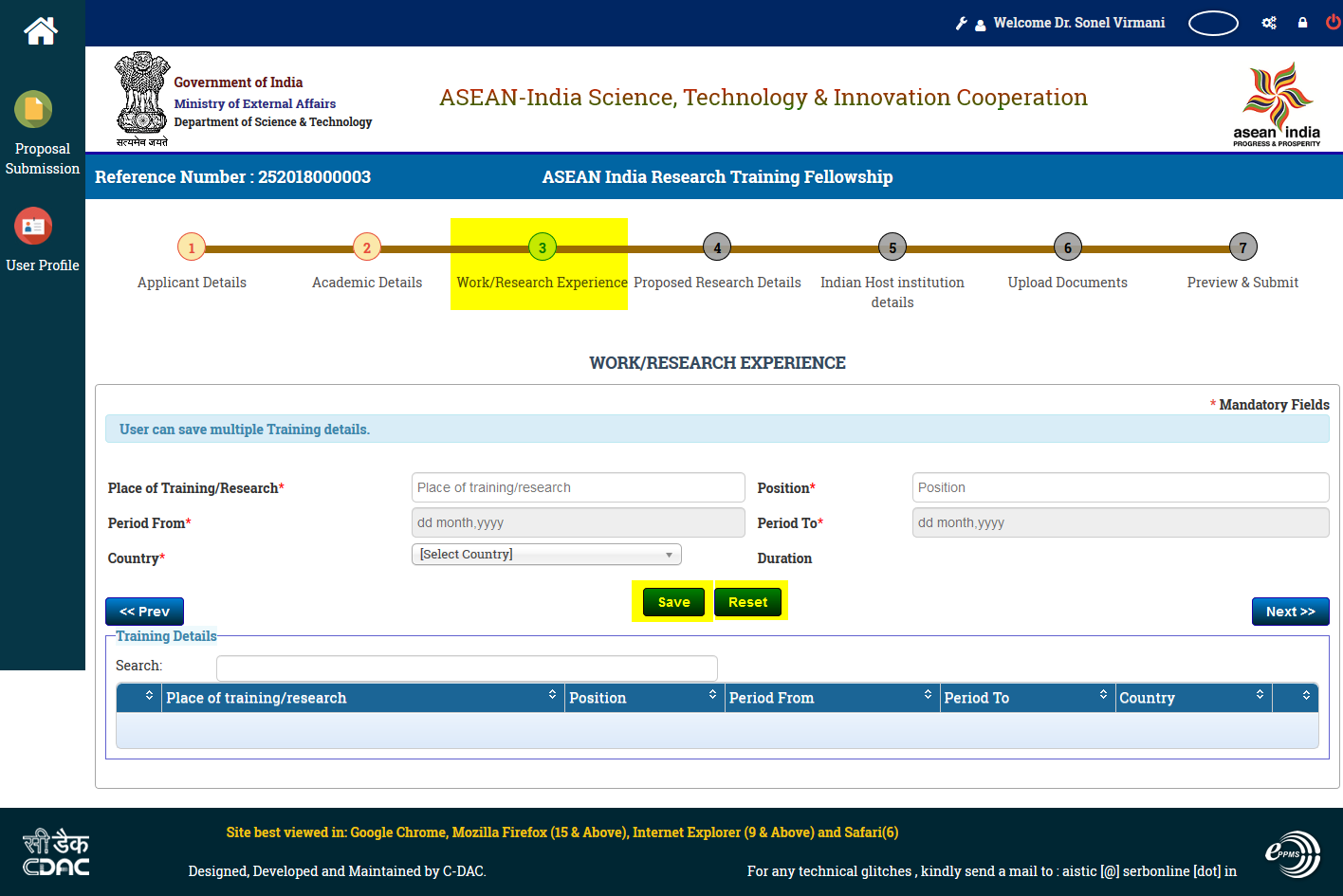
Figure 3
Proposed Research Details
Step 4 : Fill all the mandatory details as shown in Figure 4.1
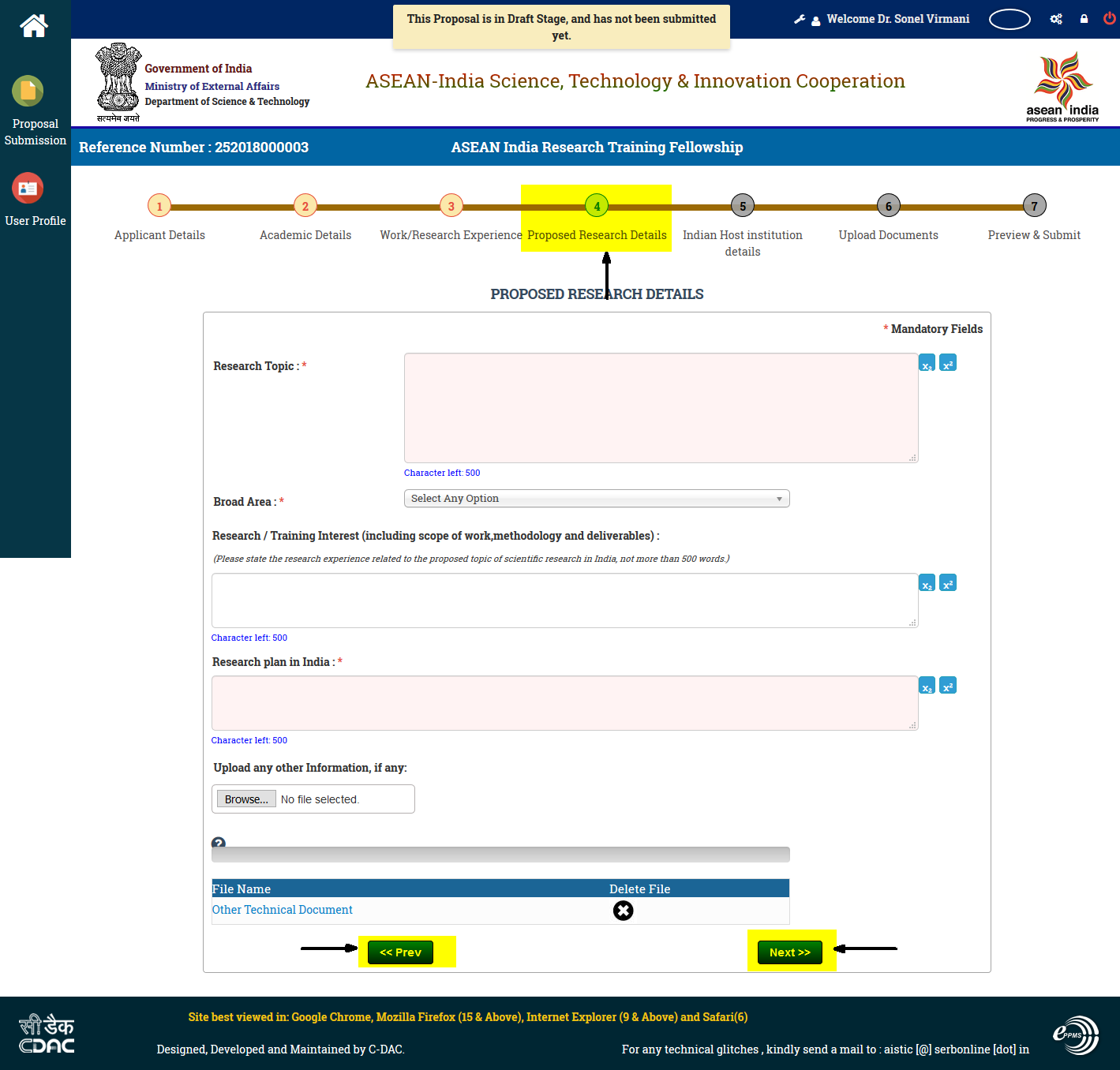
Figure 4
Host Institution & Mentor Details
Step 5 : fill all the mandatory details as shown in Figure 5.1
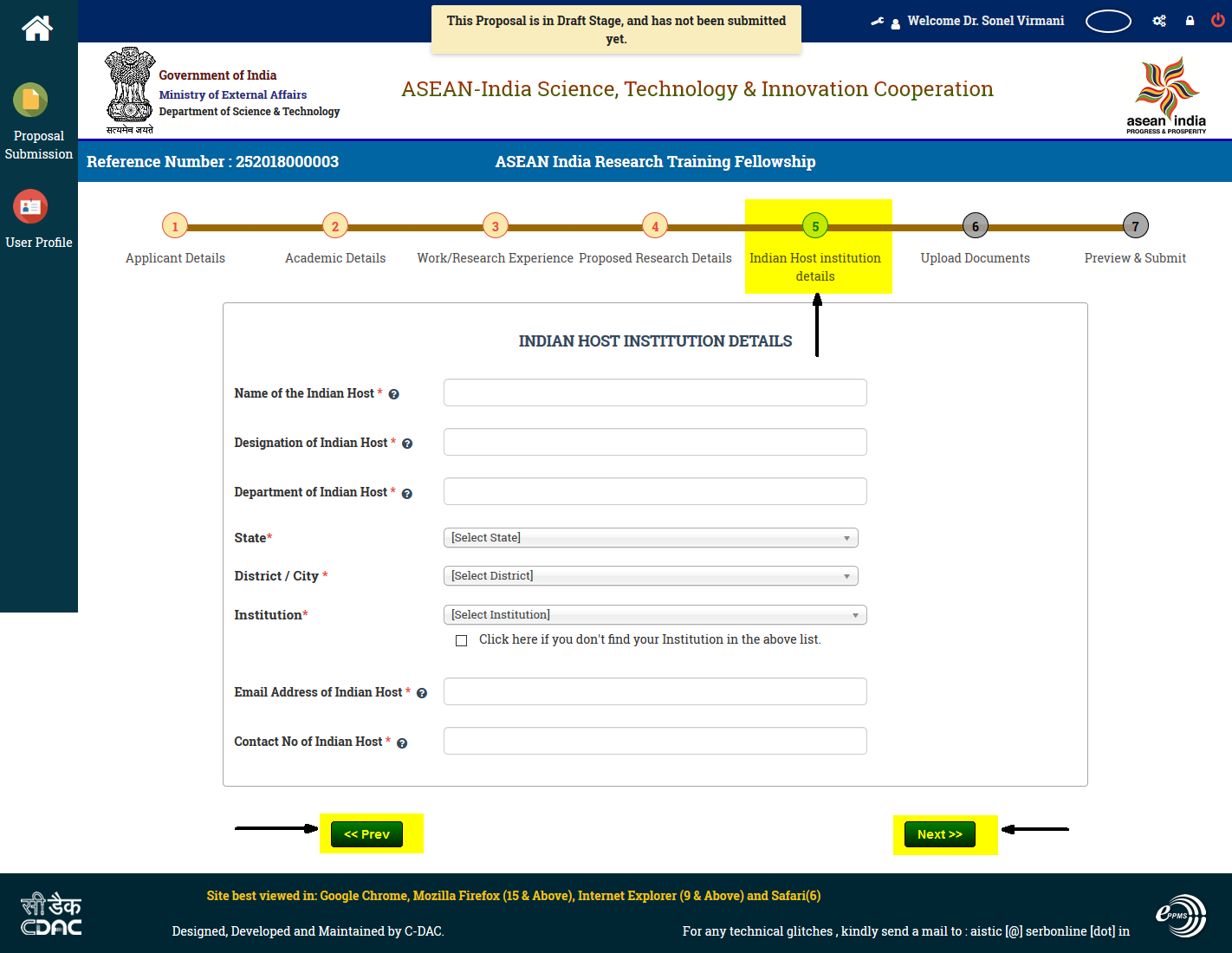
Figure 5
Upload Documents
Step 6 : Upload all the mandatory documents as shown in Figure 6
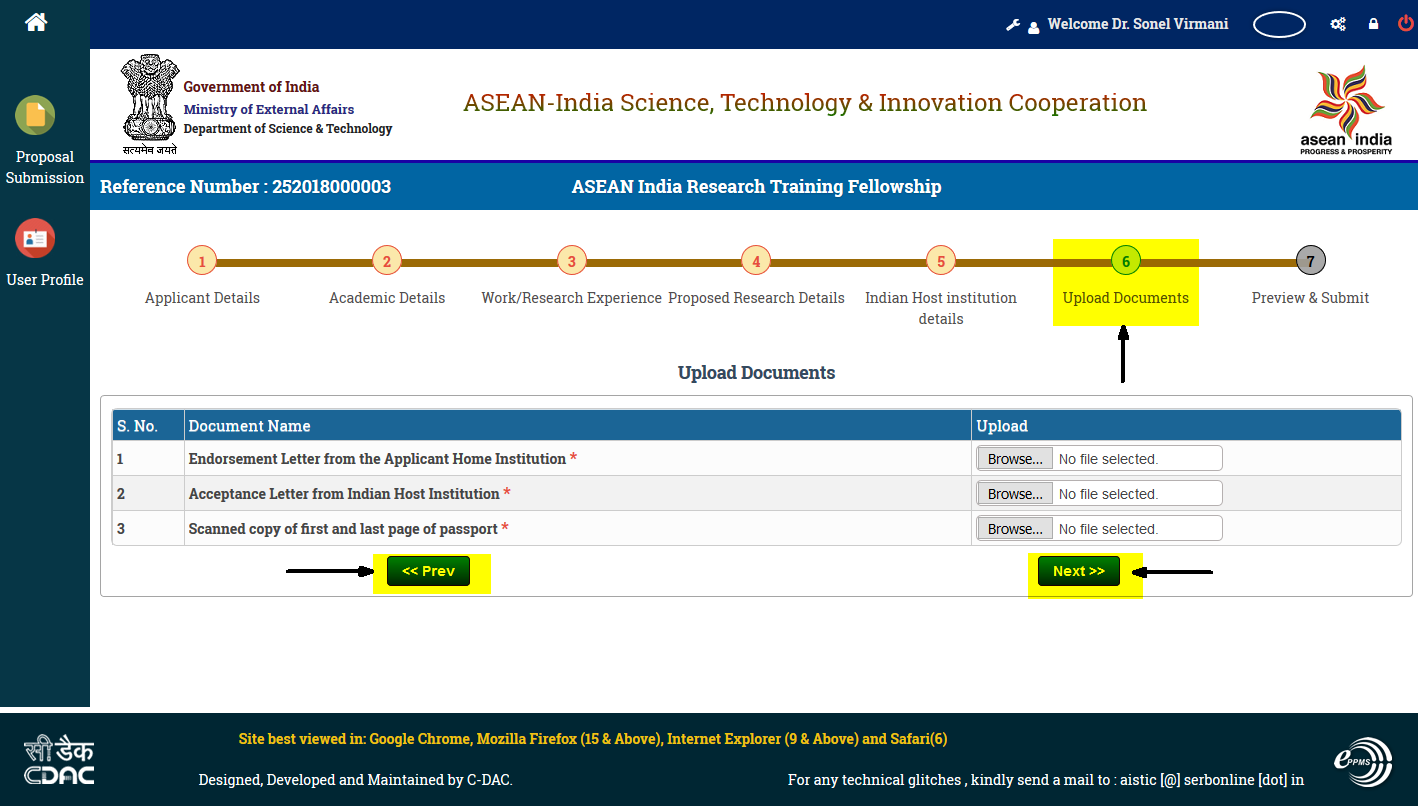
Figure 6
Preview and Submit
Download Proposal in PDF
Step 7.1 : If you want to see your proposal in PDF format then click on link as shown in Figure 7.1
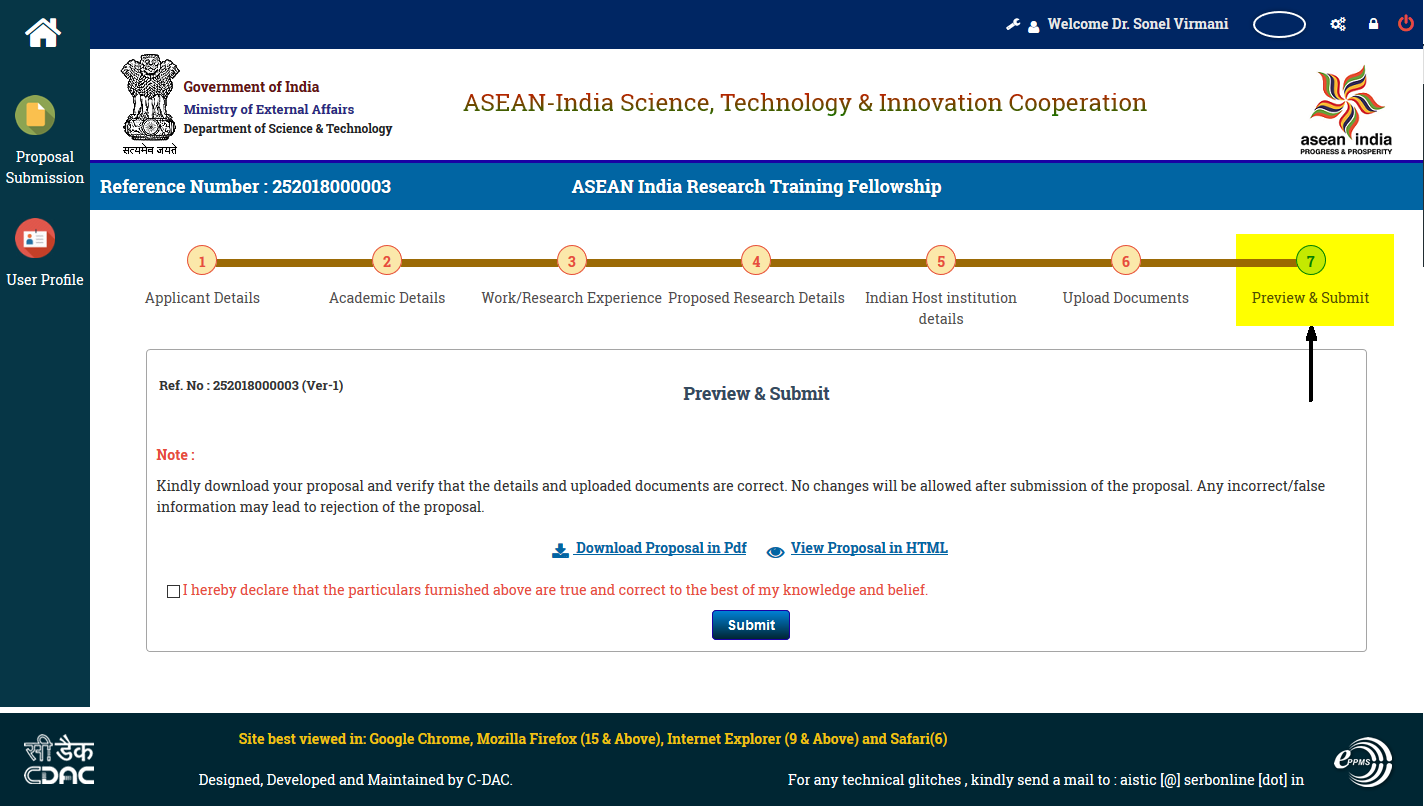
Figure 7.1
View in HTML
Step 7.2 : you can view your full proposal in HTML
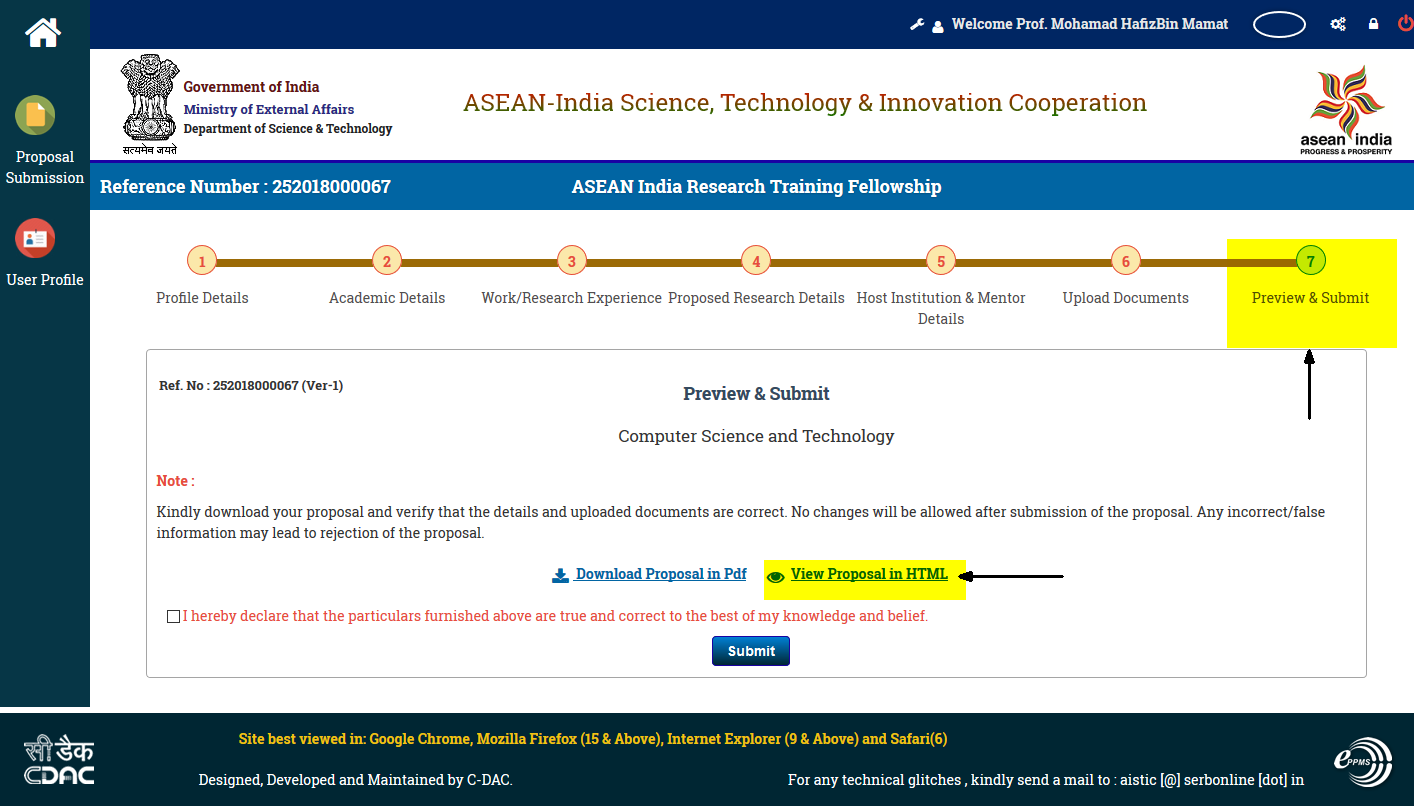
Figure 7.2
Step 7.3: click on check in box as shown in Figure 7.3 and then click on Submit button
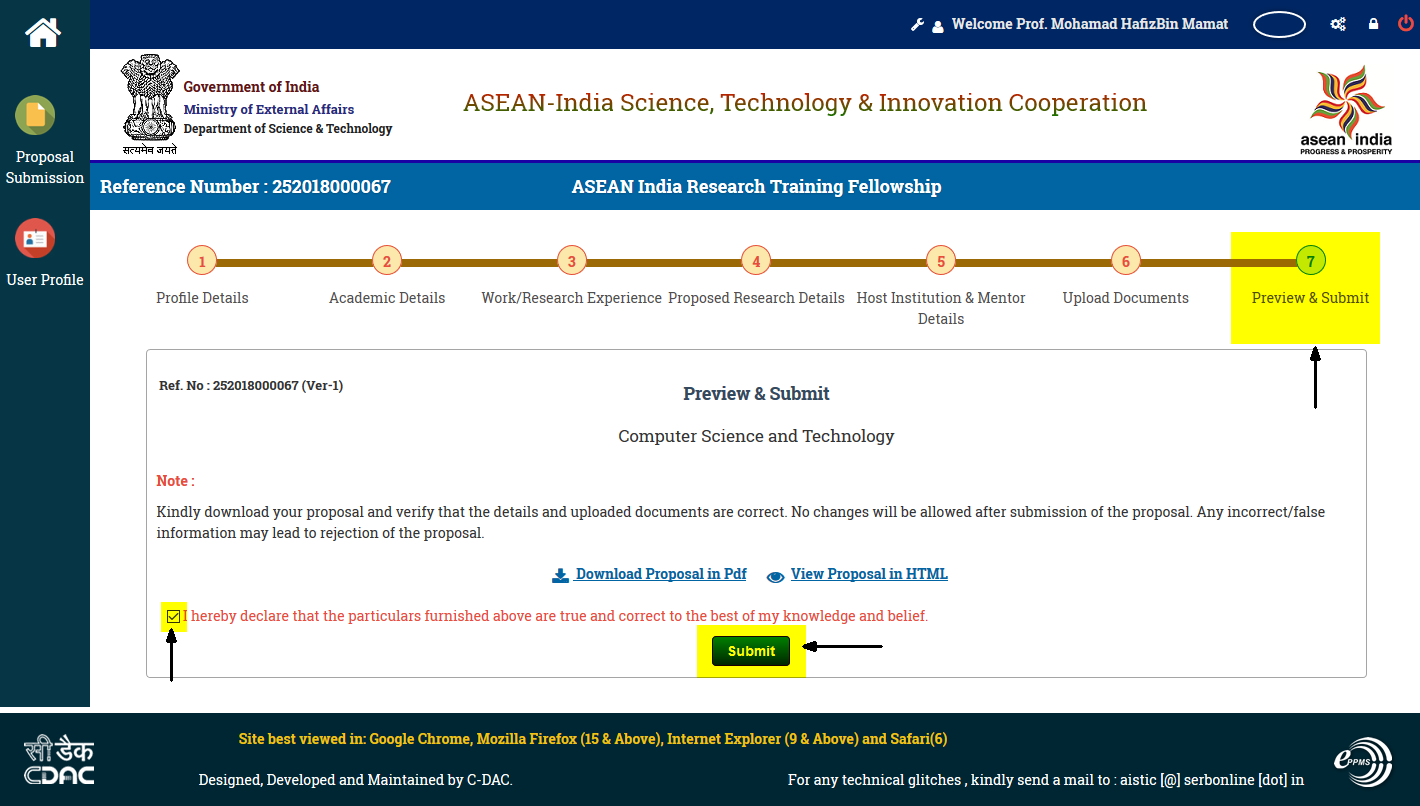
Figure 7.3
Proposal Submission
Step 7.4 : after submitting the proposal you can get this message as shown in Figure 7.4
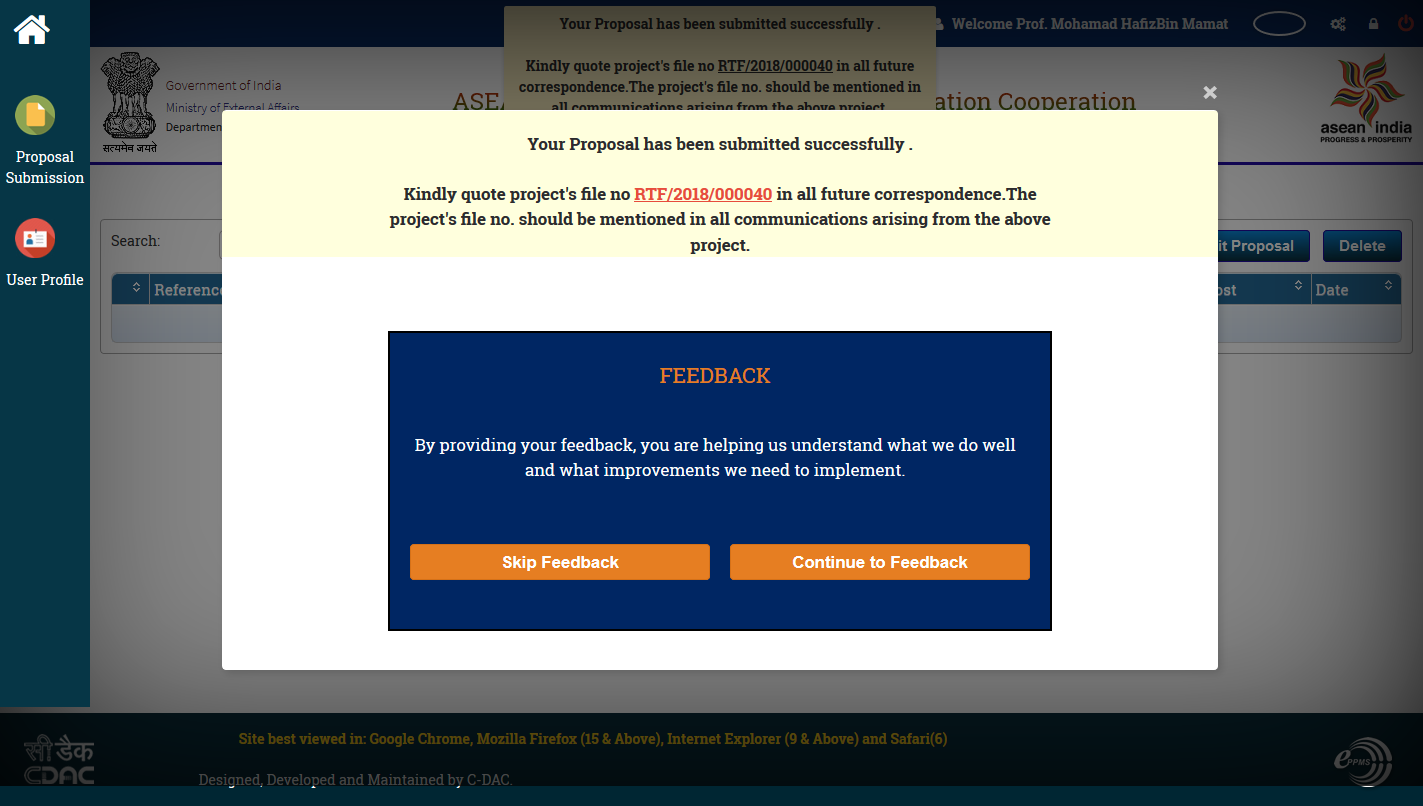
Figure 7.4
Step 7.5 : on your registered mail ID you can get this all details as shown below
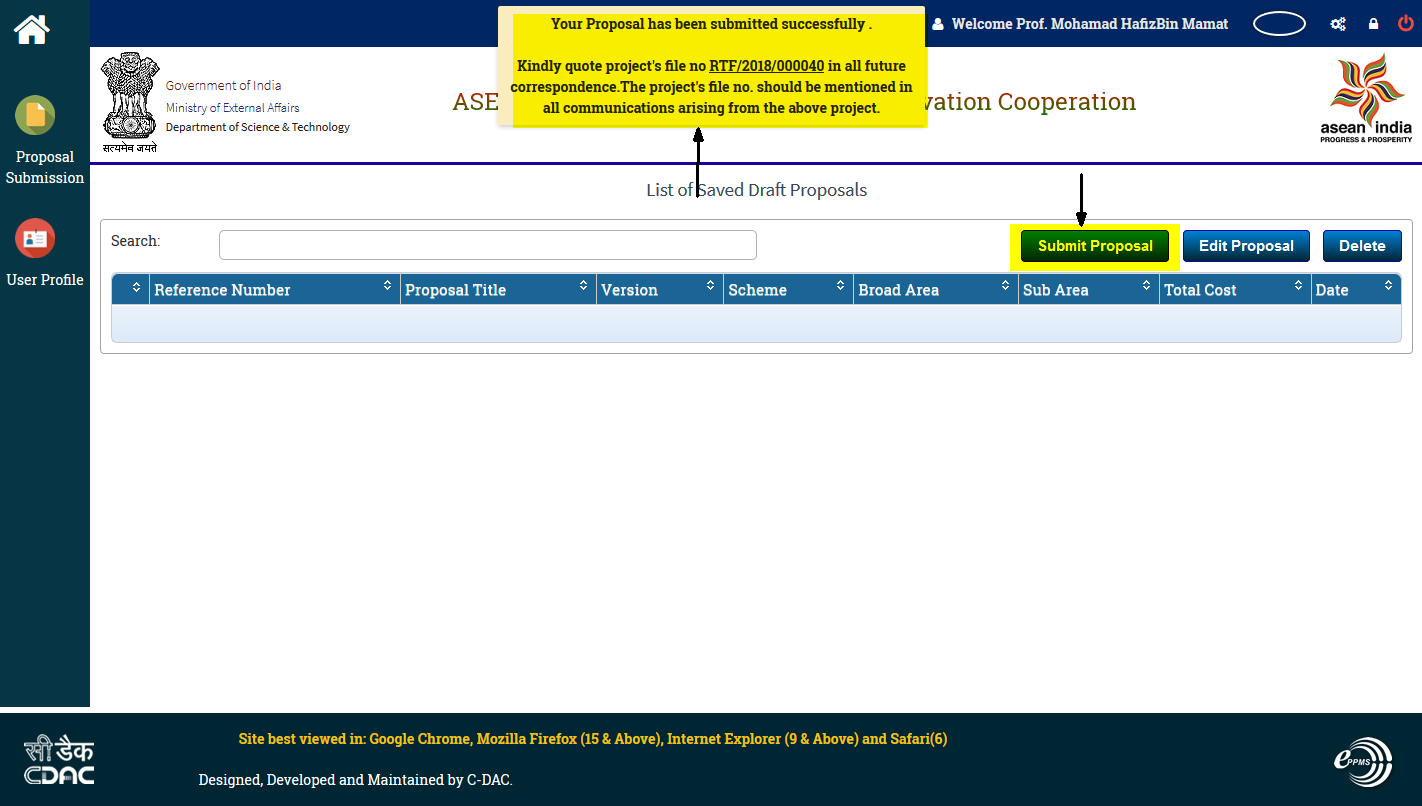
Figure 7.5
Step 7.6 : you can view all the submitted Proposals by click on button shown in Figure 7.6
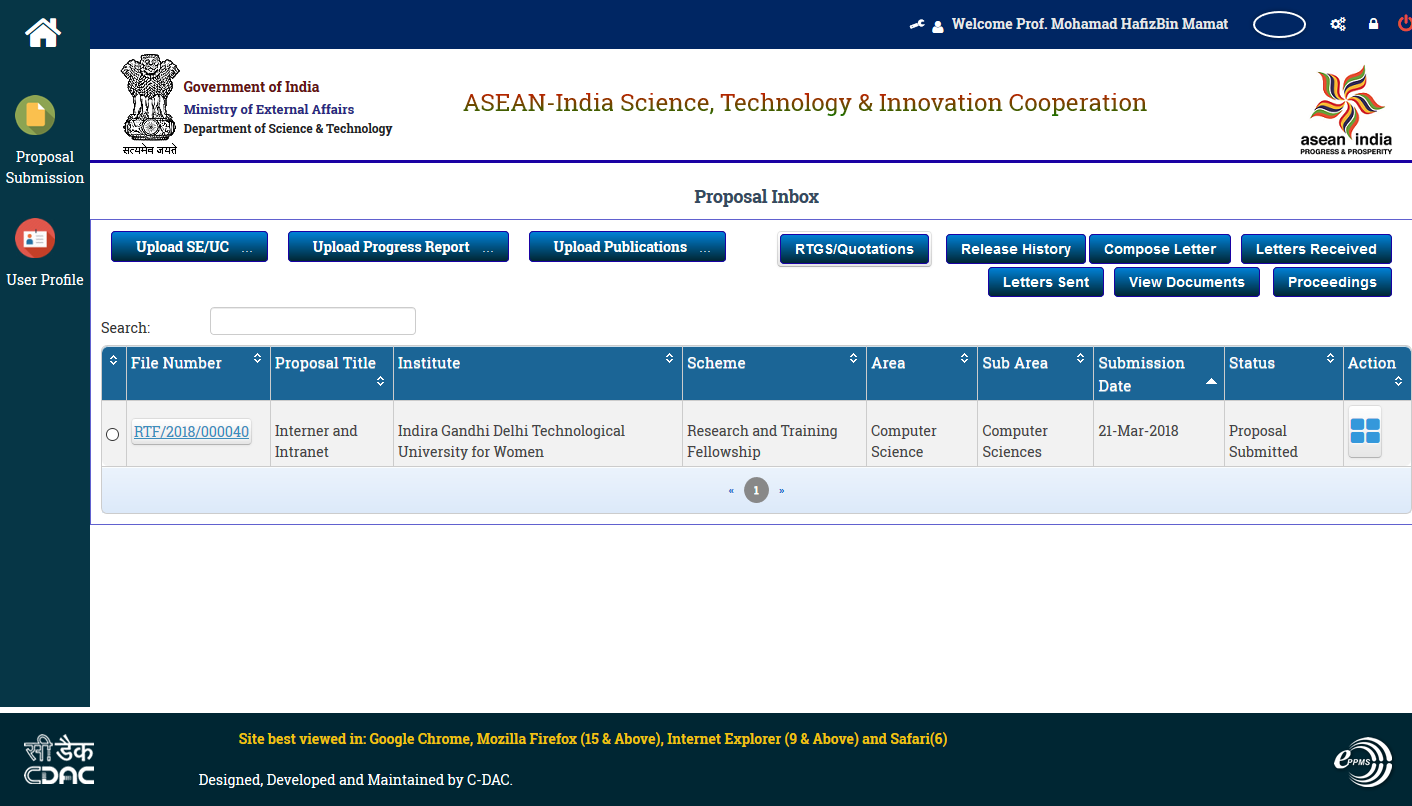
Figure 7.6